Suspicious Usb
Suspicious USB Stick
Lab link: BTLO
Challenges
Figuring out how to use peepdf to analyse the file
Pros
I learnt a new tool that is an awesome addition to my arsenal
Scenario
One of our clients informed us they recently suffered an employee data breach. As a startup company, they had a constrained budget allocated for security and employee training. I visited them and spoke with the relevant stakeholders. I also collected some suspicious emails and a USB drive an employee found on their premises. While I am analyzing the suspicious emails, can you check the contents on the USB drive?
There was a WordPress site compromise, and we were given logs to find out how it happened.
Step1
After unzipping the first zip that was safe, I copied the infected USB.zip to my kali machine where I used the terminal to unzip

Step2
Generate the file hashes, we can use these hashes to check the reputation of the documents
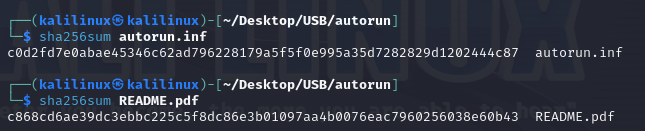
autorun.inf - c0d2fd7e0abae45346c62ad796228179a5f5f0e995a35d7282829d1202444c87
README.pdf - c868cd6ae39dc3ebbc225c5f8dc86e3b01097aa4b0076eac7960256038e60b43
Step3
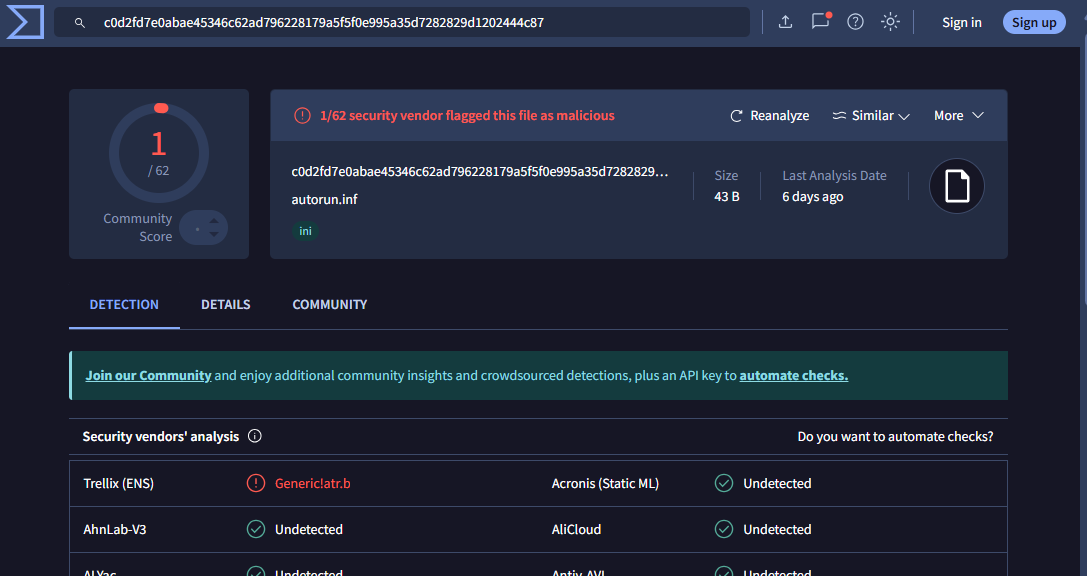
autorun.inf - c0d2fd7e0abae45346c62ad796228179a5f5f0e995a35d7282829d1202444c87
verdict - flagged malicious
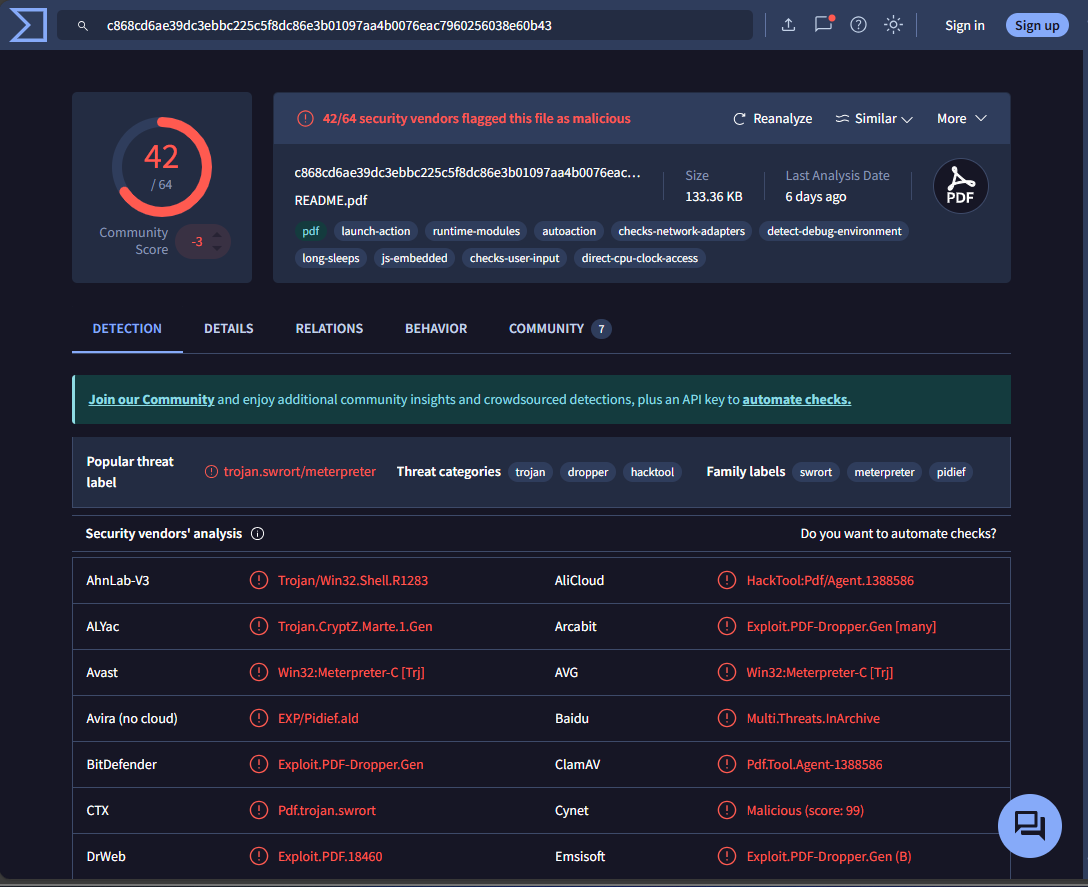
README.pdf - c868cd6ae39dc3ebbc225c5f8dc86e3b01097aa4b0076eac7960256038e60b43
verdict - super malicious
Step4
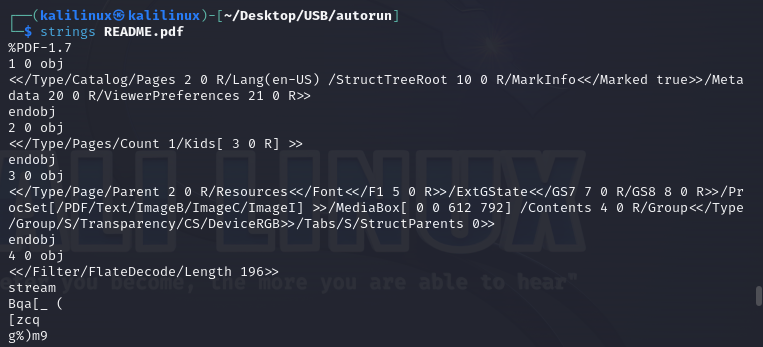
Let’s go into details and see what these files are made of. We could first try to use the strings command to show a list of strings in the files.
Note: I wanna start with the autorun file firs just because it seems like a less complicated file based on the VT result above and its generally known role
autorun.inf
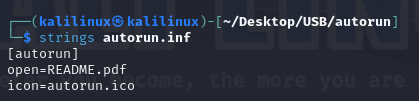
Seems to have one job: to run the README.pdf file.
README.pdf
Scrolling to the top we see that the strings command returned a lot of data
Step5
For further analysis of a PDF document, we can use a PDF analysis tool, Peepdf. It is a Python tool to explore PDF files in order to find out if the file can be harmful or not.
You can find their website here or just Google for a GitHub repo.
Run the python file using python 2. Run python2 [peepdf.py](http://peepdf.py) -h to get the help menu.
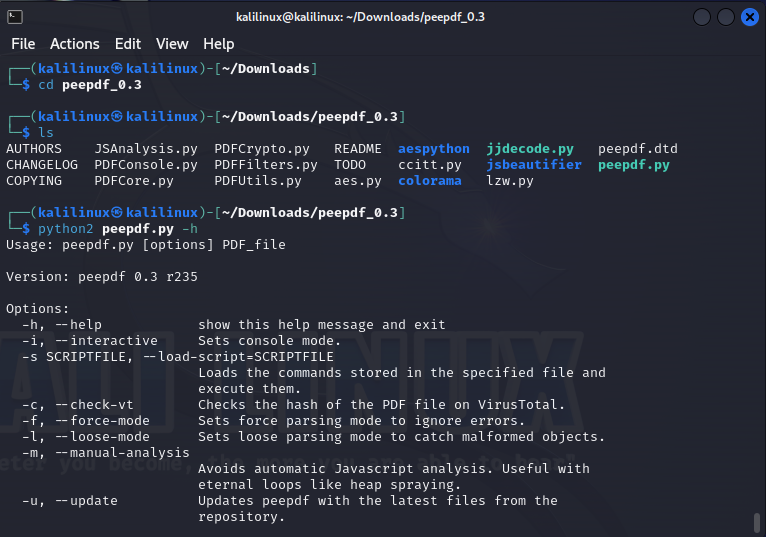
I will be using the interactive mode to investigate the file.
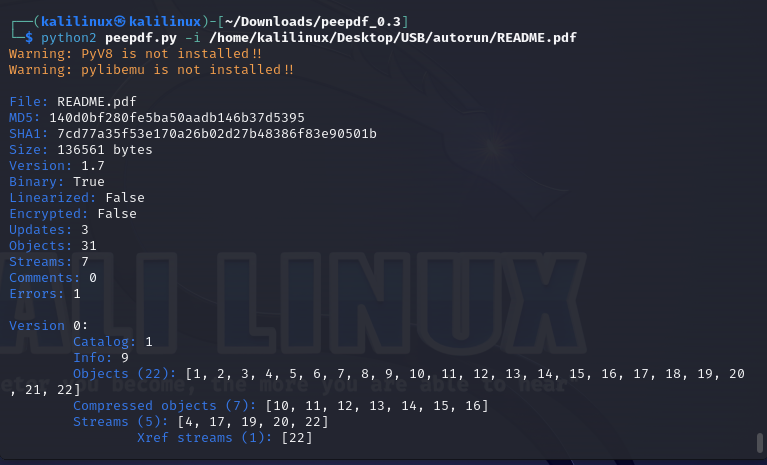
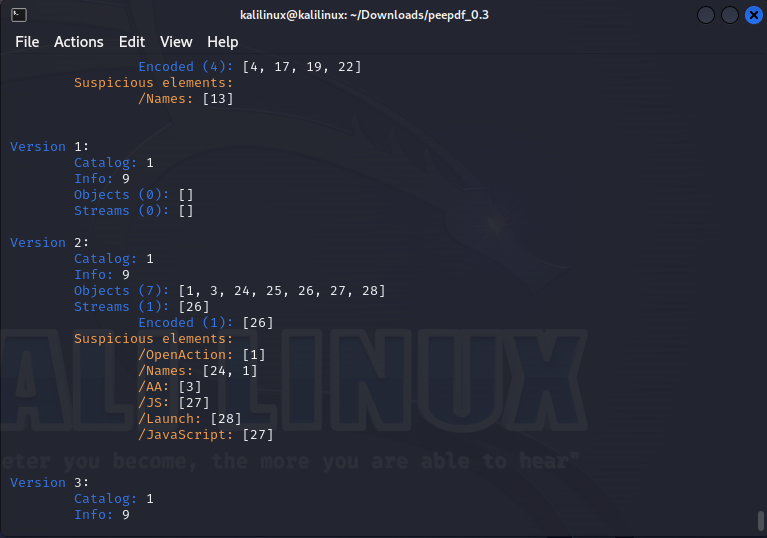
Note the suspicious elements under version 2. we would come back to it
Let’s view the document’s metadata
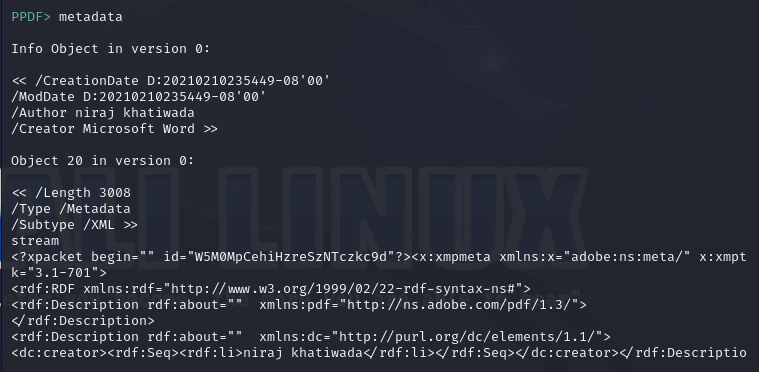
You can see the Author and Creator.
Let’s go back by typing info
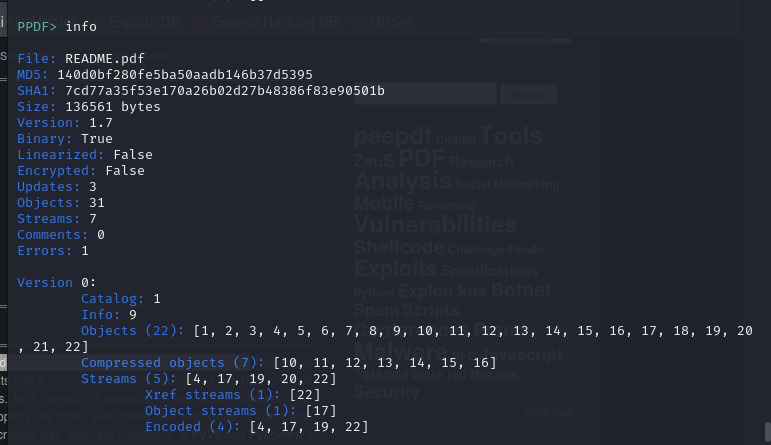
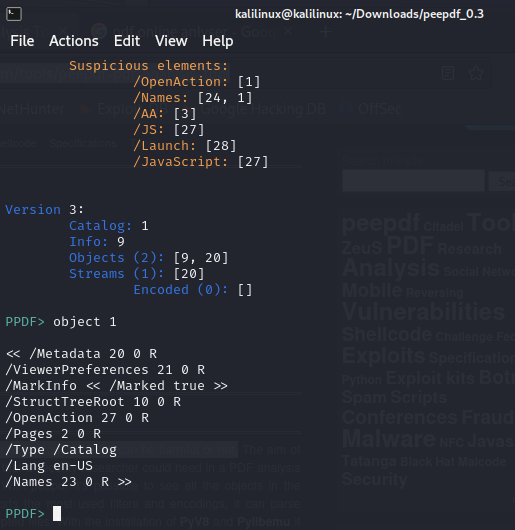
In the screenshot above, we view the open action object, and it leads us to object 27

The command above extracts an embedded file from the PDF and saves it to the system
Let’s look at the object for “Launch”
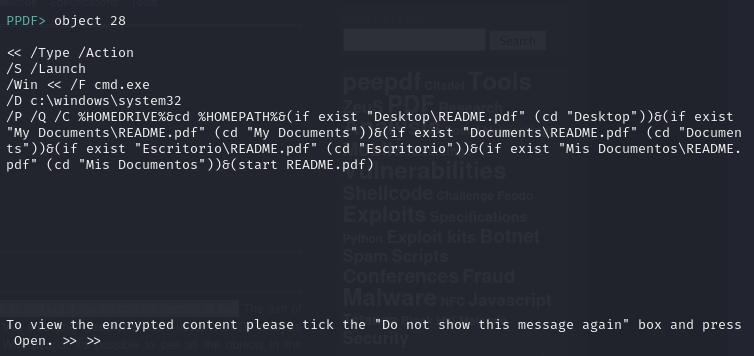
The above command launches the command prompt and tries to find the README.pdf file extracted from the original PDF document and launches it.
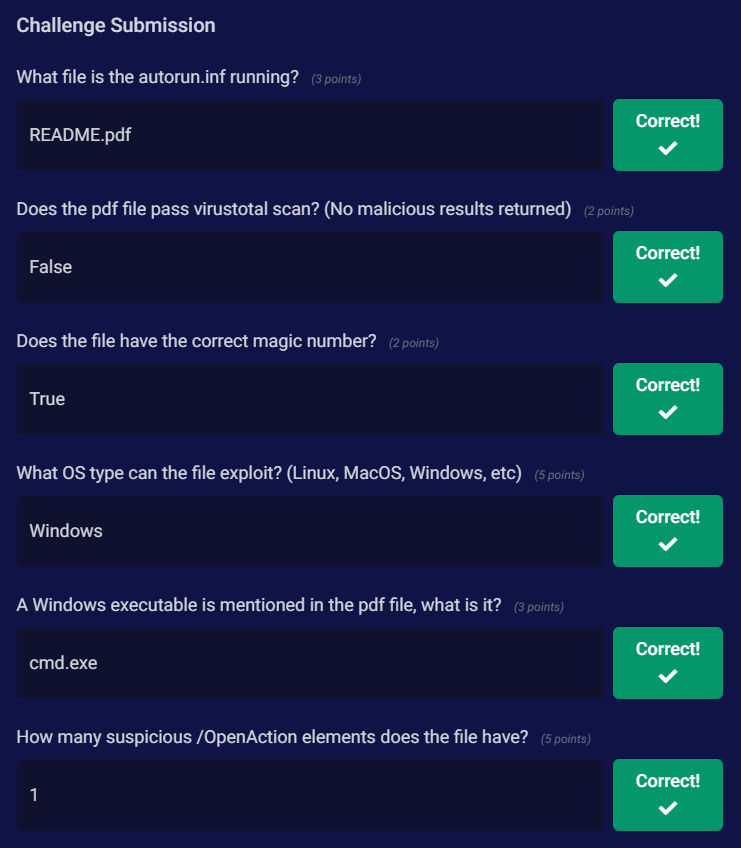
Solutions